
Setting up auto-distribution in LettsNews is simple. You just need to add your account details to enable LettsNews to auto-distribute direct to your selected WordPress blog or Medium page, and follow a couple of steps to drop your story into your Substack. Soon, we will also add auto-Promotion of your distributed stories to social media sites such as BlueSky, Threads, and Reddit.
Setting Up Distribution Channels
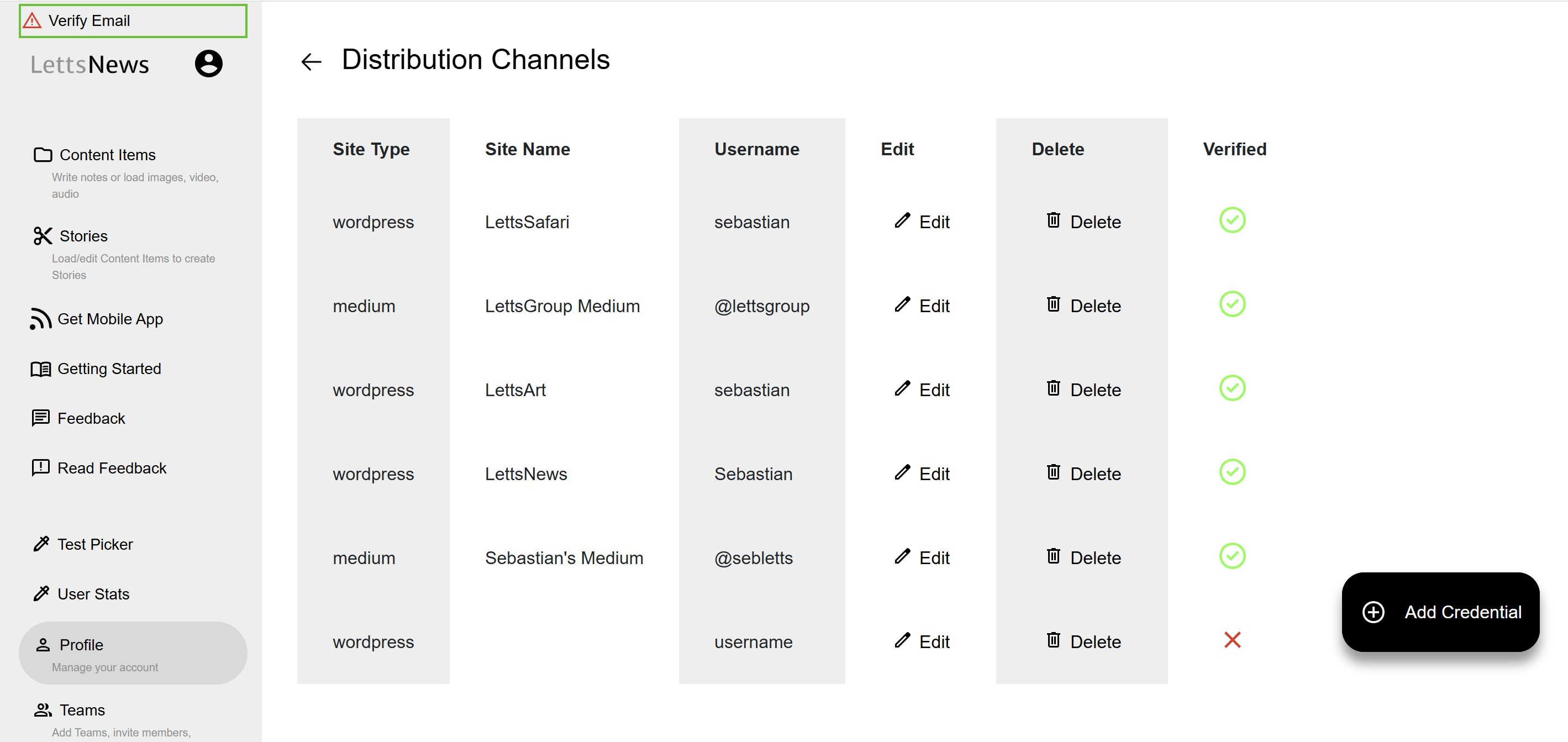
To use LettsNews' powerful Distribution feature to auto-distribute your stories, first you need to set up your Distribution channels. To add distribution channels to LettsNews click Profile in the left-side menu, then click the "Distribution Channels" button. In the distribution channels page click the "Add Credential" button to create a new Distribution Channel, or click edit on an existing Distribution Channel to amend it.
Auto-Distributing your Stories with LettsNews
Once you've finished creating your story, you can publish and auto-distribute it by first clicking the "Publish your story" cloud icon located to the right of your story's title. After doing this you will find the button to Distribute either in the three dot drop down menu, or as the "Distribute your story" icon also to the right of your story's title.
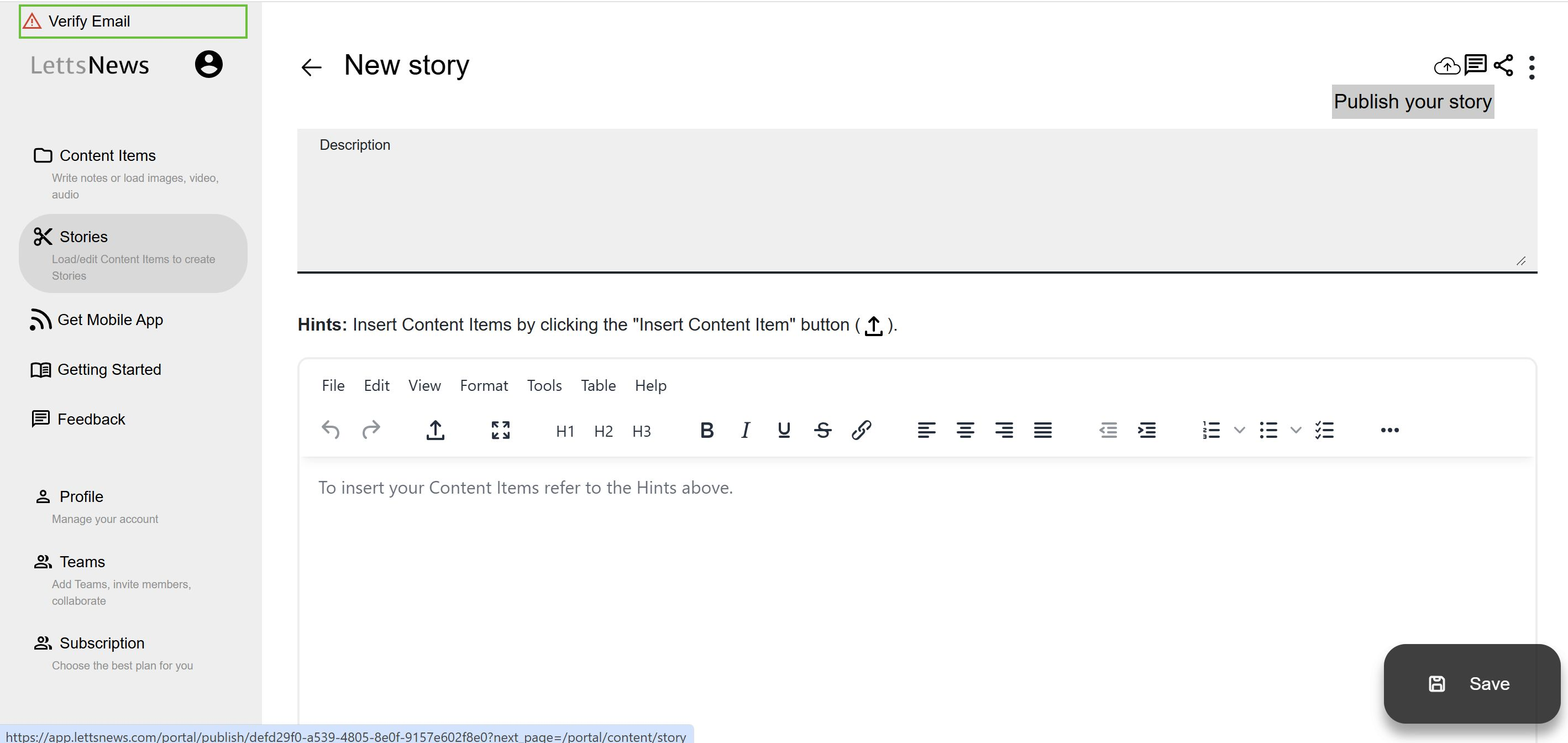
If you have selected the "Publish on LettsNews Feed" option in your "Profile" then whenever you publish your story, it will automatically be published to your own personal LettsNews feed, which you can access from "My LettsNews feed" in the left-side menu.
WordPress
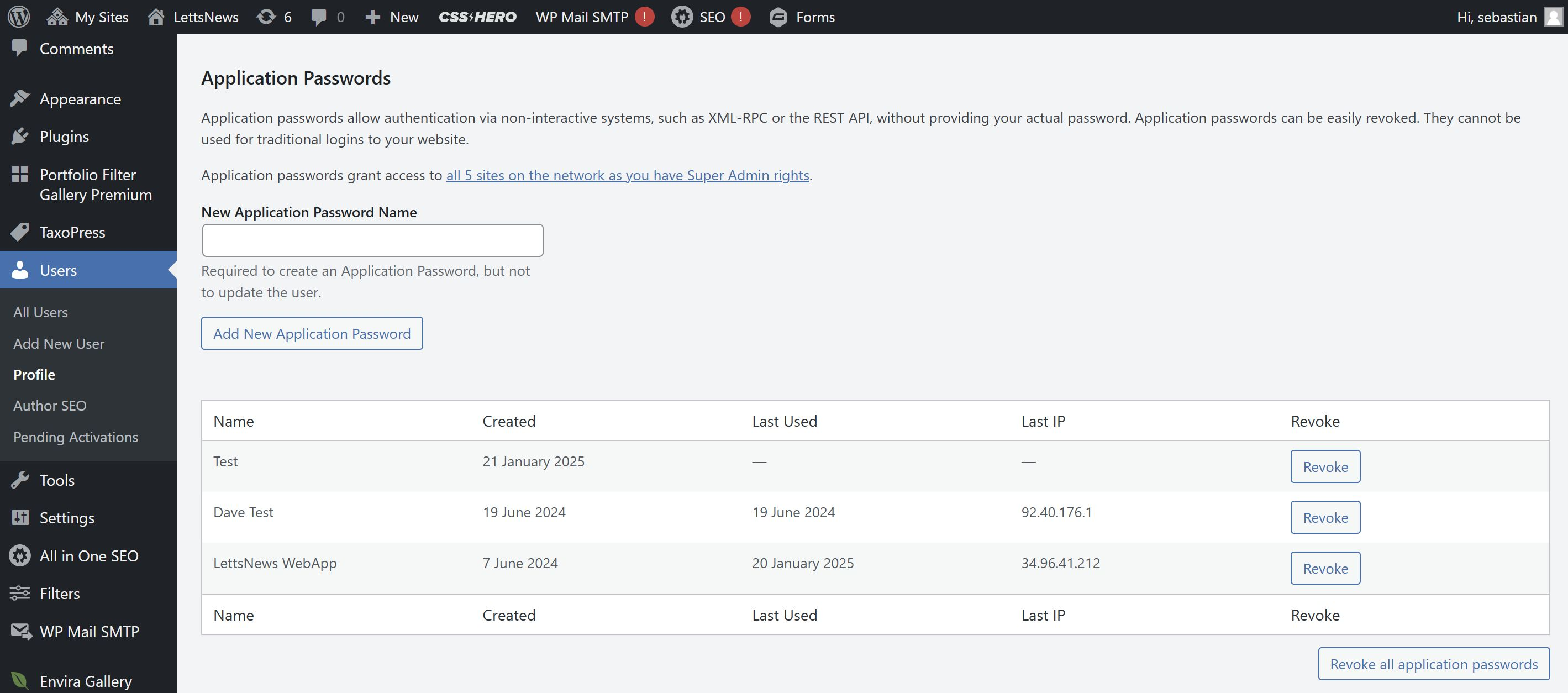
In order to set up your WordPress distribution in LettsNews you will need your wordpress username and a valid Application Password. In order to get an Application Password follow these steps:
- Go to your website “/wp-admin” page and then go to Users -> Profile and then scroll to the bottom of the page where you should see Application Passwords.
- Type in a “New Application Password Name” which will not be needed in LettsNews and is purely for you to be able to follow your Application Passwords in WordPress.
- After Typing in the Application Password Name click the “Add New Application Password” button. Doing so will then provide you with a password, which you should copy and record elsewhere, as you will not be able to retrieve it from WordPress again.
- In the LettsNews “Edit New Channel” Page you should now put the WordPress Username into the “Site Username” field, and the Application Password into the “Site Password or Token” field and make sure you have selected WordPress in the top dropdown.
Medium
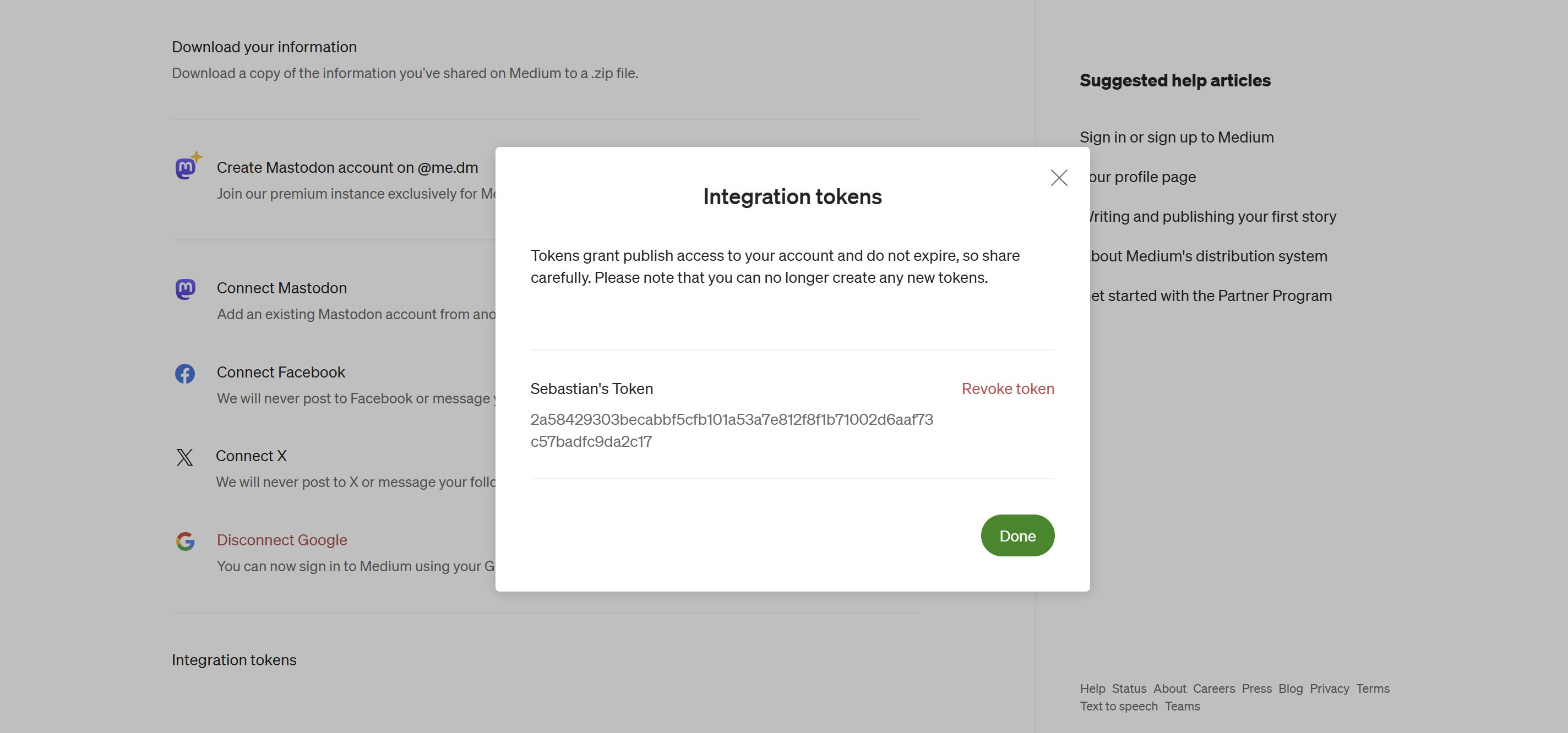
In order to set up auto-distribution to Medium you need to insert your username and your Integration Token. To get your Integration Token follow these steps:
- Go to your medium and then go to Settings -> Security and apps -> Integration Tokens.
- From here you should see your token which you can copy.
- In the LettsNews “Edit New Channel” Page you should now put the Medium Username into the “Site Username” field (including the @ sign), and the Integration Token into the “Site Password or Token” field and make sure you have selected Medium in the top dropdown.
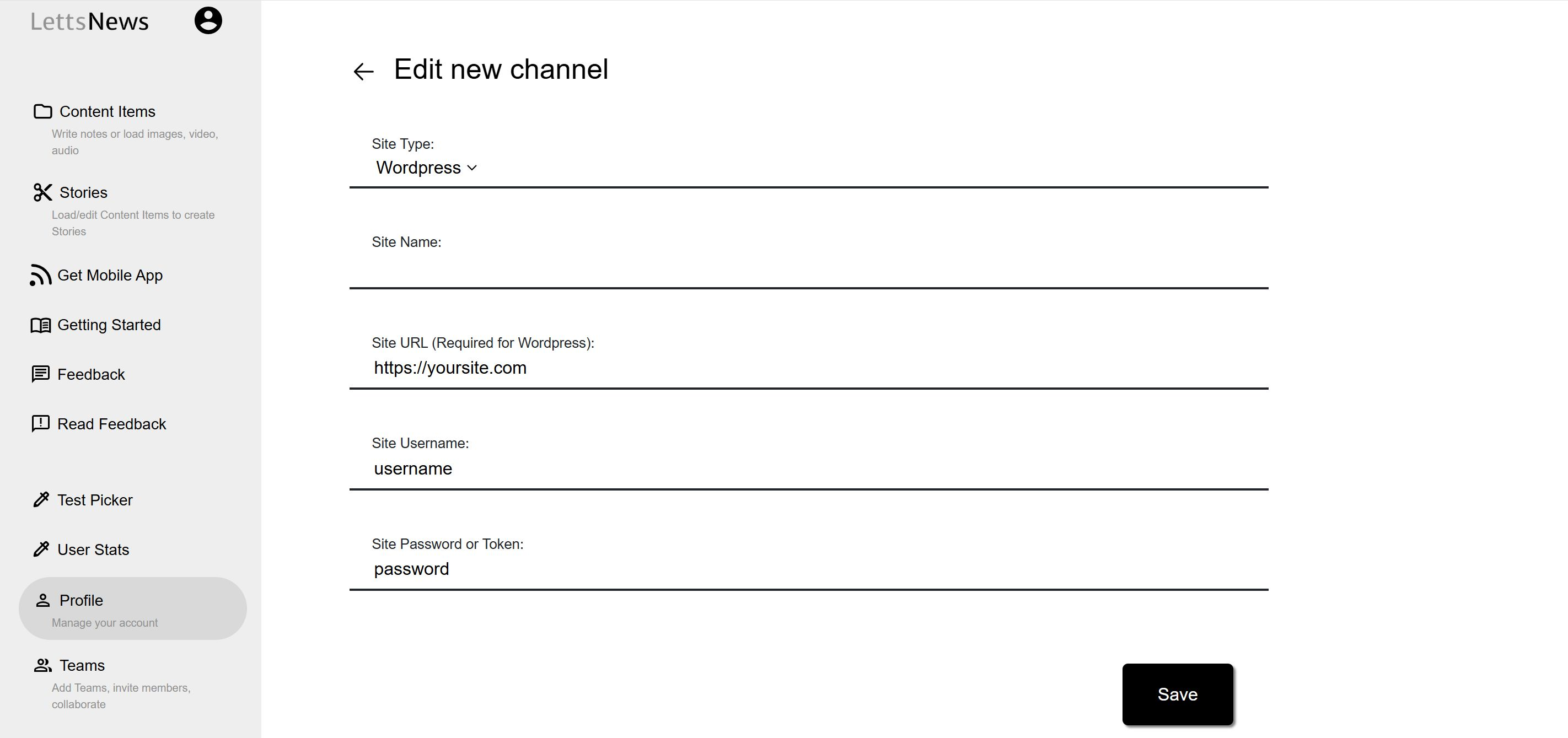
After you have completed the above, save the distribution channel in LettsNews and check the verified field. Check there is a green tick, if there is you have successfully set up your distribution channel(s) and you can automatically distribute your stories through LettsNews' distribution menu.
Substack
To Distribute your story to Substack, choose the option to "Copy for Substack". As Substack does not currently have a public API, LettsNews is unable to auto-distribute your story for you, however our custom "Copy for Substack" button shortens it to a simple copy and paste approach that works well every time.
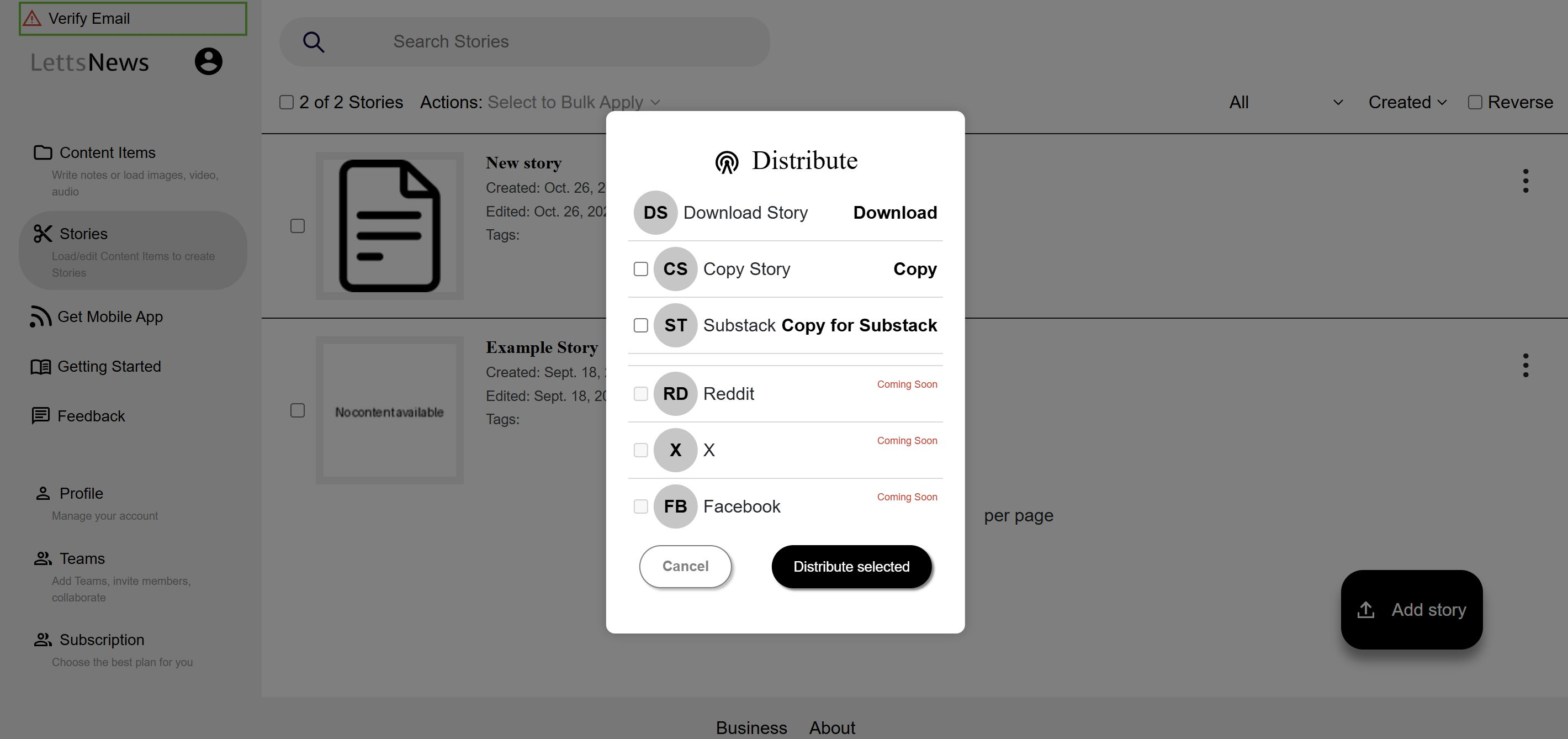
First you click the "Copy for Substack" button in your Distribute menu, and then simply navigate to your Substack page, click to create a new story, and paste, and you'll find your whole LettsNews story automatically copied in and correctly formatted.
Find more LettsNews tips at our Getting Started page. Sign up to LettsNews for free at lettsnews.com.